

Automate Blog
Unlock the full power of the HighLevel platform with the
Australian-based HighLevel experts - Automate Digital.

Level Up Your Automations: GoHighLevel's Advanced Workflow Builder
Unveiled at the Level Up Summit 2025, the Advanced Workflow Builder is a game-changing upgrade to how automations are designed inside GoHighLevel.
The Advanced Builder is a highly visual, free-form canvas for designing complex automations. It lets you drag, drop, and interconnect multiple trigger paths, parallel branches, and conditional logic—all in one unified view—while preserving the workflow’s execution behavior. It’s built for flexibility, speed, and collaborative clarity.
Access & Requirements
You can open the Advanced Builder from within any existing workflow—just toggle to Advanced in the top-left of the workflow screen.
You may switch back and forth between the Standard and Advanced views for the same workflow. (Note: some features are exclusive to Advanced mode—if you switch back, those elements may be removed.)
Advanced-only features include: Trigger Go-To, delinked nodes, disabled nodes, sticky notes/color coding, keyboard shortcuts, and auto-layout.
The Canvas: Building, Connecting & Organizing
Adding & Connecting Steps
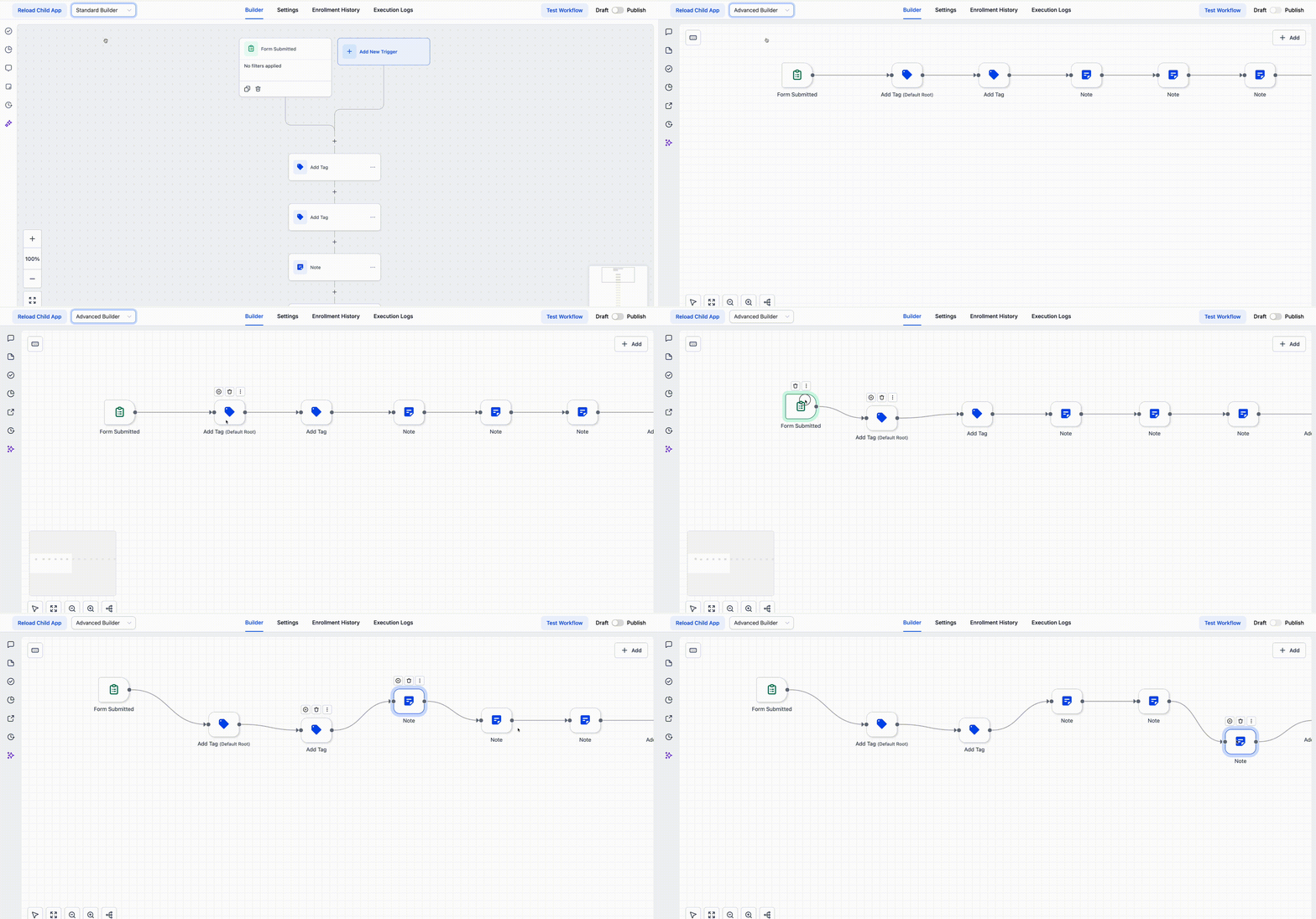
Use the Triggers & Actions panel to find what you need, or drag items directly onto the canvas.
To link nodes, drag from the connector handle (or click the + icon) to the next node.
Pro tips:
• Use marquee-select (or Shift + drag) to move multiple nodes at once.
• Copy and paste entire branches across workflows to reuse logic patterns.
Trigger Go-To & Delinked Nodes (Parallel Branches)
Trigger Go-To

This feature lets you define exactly where a trigger should jump to.
Connect via the trigger’s Go-To edge to a target action.
Visually, Go-To links appear as dashed lines with an arrow. Solid lines remain for sequential links.
At runtime, when that trigger fires, the workflow will “jump” to that target action and continue from there.
Delinked Nodes

Create self-contained branches that aren’t linearly connected—ideal when you want multiple independent paths.
These clusters can sit anywhere on the canvas.
To start them, attach a trigger via a Go-To connection.
Each branch will run in parallel but within the same workflow context.
Visual cues:
• Solid connector = standard sequential path
• Dashed with arrow = Trigger Go-To jump
• Isolated group = delinked branch
Enable / Disable Nodes
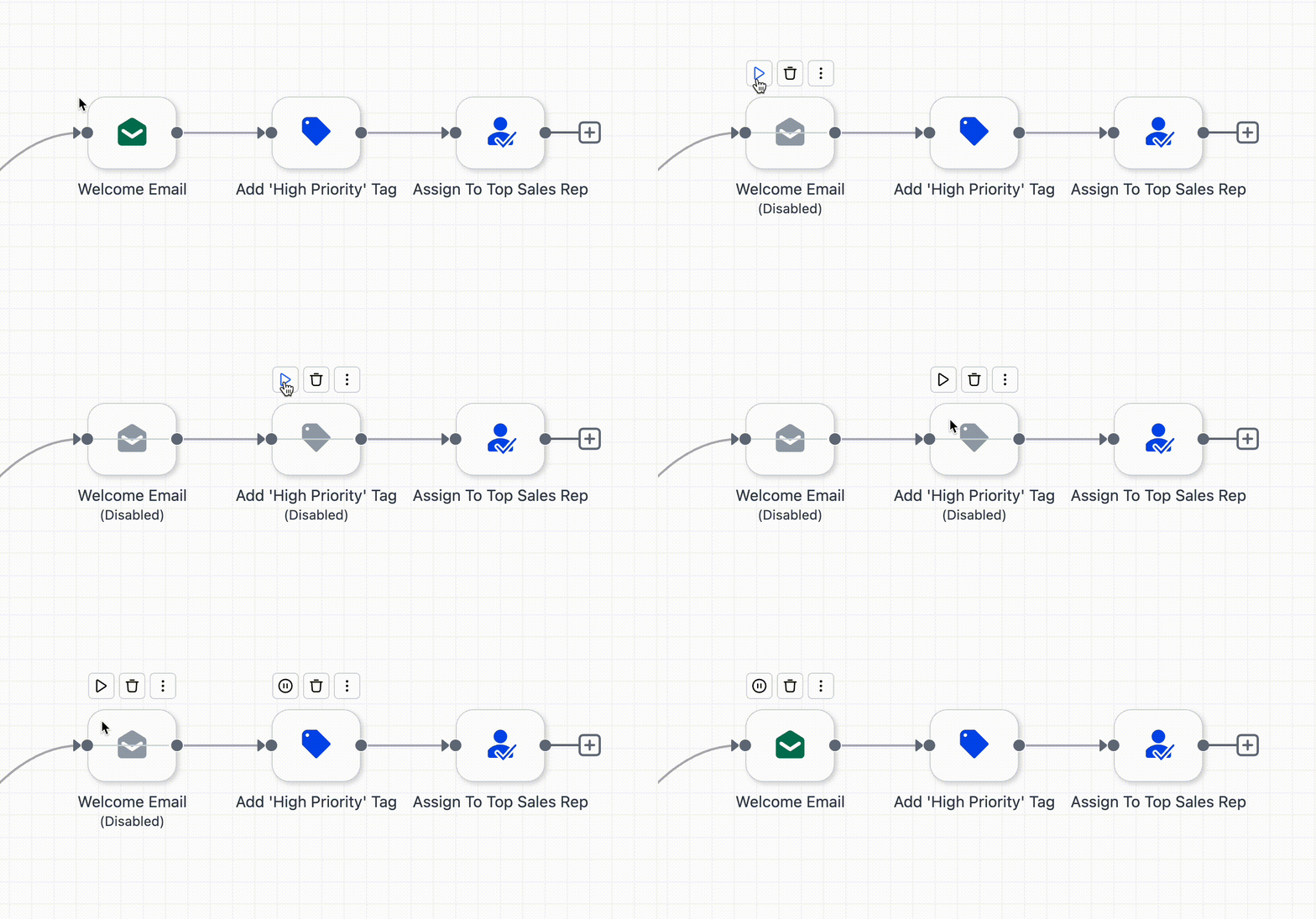
You can temporarily turn off (disable) or reactivate (enable) any action or condition, without deleting or having to reconnect nodes.
Disable: Hover over the node → click the “pause” icon
Enable: Hover again → click the “play” icon
Disabled nodes are ignored during execution but their connections remain intact.
Sticky Notes & Color Coding

Add notes to annotate logic, explain your approach, or leave messages for collaborators—or for future you.
Open the notes panel from the sidebar
Pick a color and style, then enter text
Notes support images and hyperlinks
Keyboard Shortcuts & Power Navigation

Click the keyboard icon (top-left) to view all shortcuts. These help speed up navigation, editing, viewing, and more.
Some useful ones:
Arrow keys → move selected nodes
Cmd/Ctrl + C & V → copy/paste
Next/Previous action toggles → move quickly through steps
Tidy Up (Auto-layout)

If your canvas is looking messy after a lot of editing or importing, a single click of Tidy Up cleans it all up — reorganizing the nodes into a neater layout.
Workflow Switcher

Need to jump to another workflow without losing your current canvas?
The Workflow Switcher (in the left sidebar) shows your recent workflows and lets you search by name or tag
Clicking one opens it in a new tab, so you can keep your current work undisturbed
Notes, Limits & Best Practices
Single enrollment per contact: Even if multiple branches run in parallel, one contact won’t be processed simultaneously through more than one branch in the same workflow.
Switching back to Standard: Make sure to remove any Advanced-only features (Go-To links, delinked nodes, disabled nodes) before switching back, or they will be lost.
Organize early: Use color-coded notes, the Tidy Up function, and clear naming to keep your workflow readable and maintainable.
Descriptive naming: Choose clear, meaningful names for triggers and actions—these show up in both the canvas and version history, making things easier to understand later.



ABOUT US
SYSTEM COMPARISONS
© Copyright 2024. Automate Digital Marketing