

Automate Blog
Unlock the full power of the HighLevel platform with the
Australian-based HighLevel experts - Automate Digital.
Google Fonts Now Available in Email Builder
We're thrilled to announce the addition of Google Fonts to the email campaign and template builder, providing you with a diverse range of font options to elevate your email designs.
📌Problem:
Previously, users lacked the ability to add Google Fonts to their email campaigns, restricting their styling options and design creativity.
✅Solution:
Now, users can seamlessly access and utilise Google Fonts directly within the font selector of our email builder. Furthermore, font management is made effortless through the settings page, enabling users to add, delete, and control fonts with ease.
👷How to Use It:
Navigate to the email builder section of our platform.
Open an existing email campaign or template, or start a new one.
Select a text element within your design.
Choose the font selector option.
Click on "Add fonts"
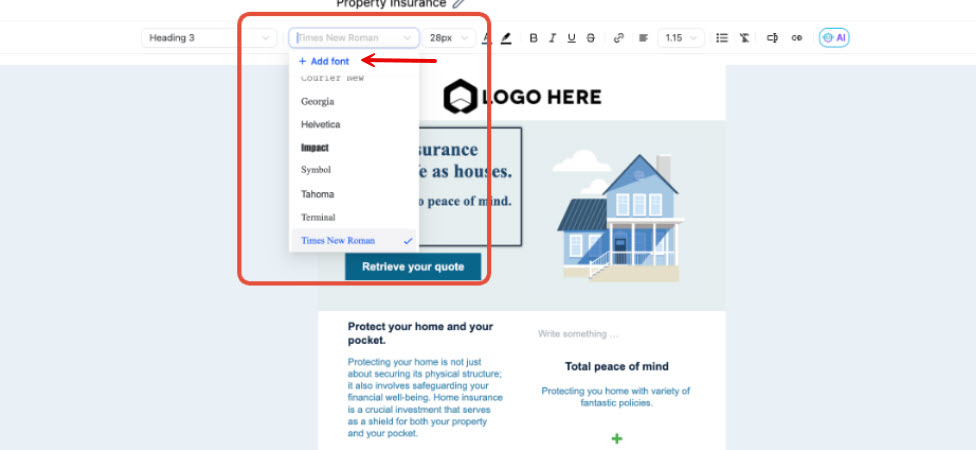
Select the desired font from the drop down in the modal
Select the desired font and save it by clicking on "Add font".
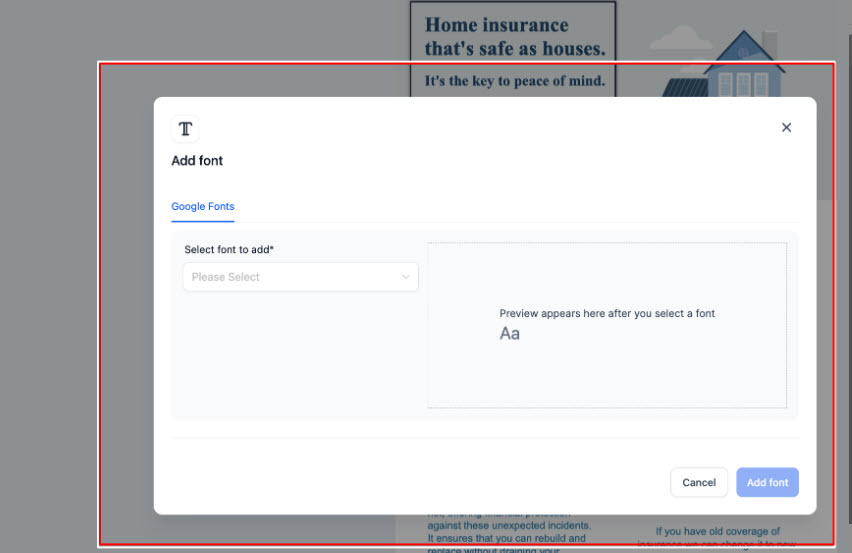
8. Select the desired font and save it.
The font will now be available in the font selector for every builder.
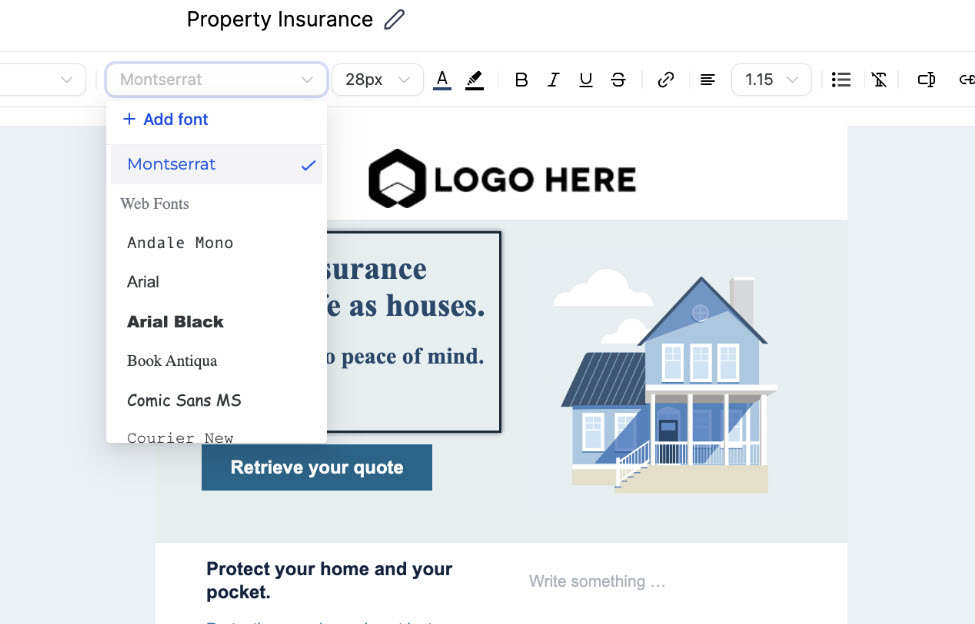
10. Additionally, the font can be managed from the settings page in the Campaigns main page:


Navigate to the Settings section of Campaigns and select "Fonts"
To delete a font, simply click on "Delete" next to the respective font.
To add a font from settings, click on the "Add font" section and follow same process
This is a great new feature to the platform that will only help improve your email marketing efforts. Happy designing!



ABOUT US
SYSTEM COMPARISONS
© Copyright 2024. Automate Digital Marketing